2026-03-06 को प्रकाशित
AI इमेज एडिटिंग ट्यूटोरियल
AI से किसी भी इमेज को ट्रांसफ़ॉर्म करें — प्रिसिज़न एडिट्स, बैकग्राउंड रिप्लेसमेंट, कॉन्टेक्स्ट ट्रांसफ़ॉर्मेशन और मल्टी-राउंड रिफाइनमेंट — Seedream 5 के इंटेलिजेंट एडिट मोड के साथ।
AI इमेज एडिटिंग क्या कर सकती है
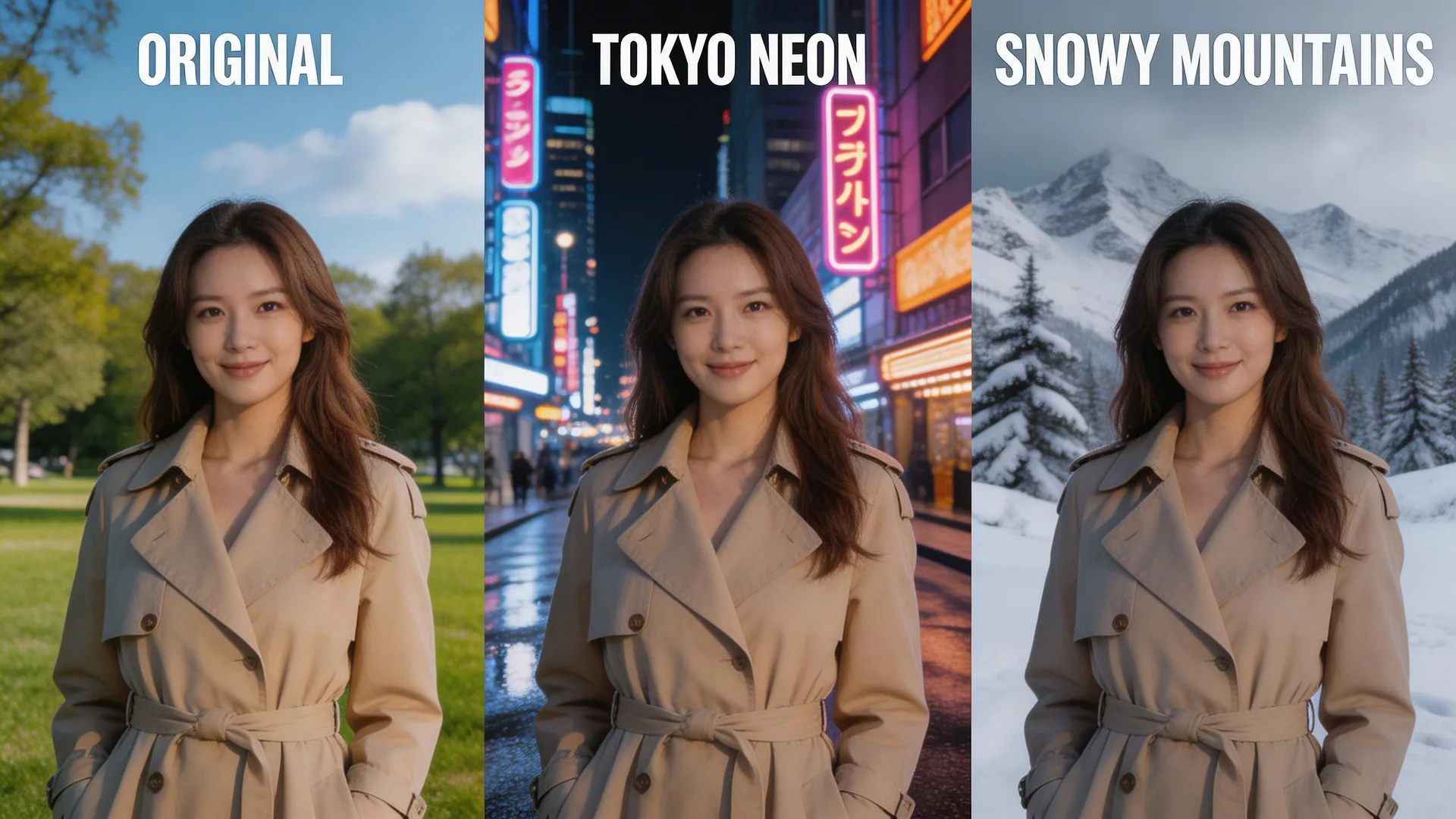
AI इमेज एडिटिंग बेसिक फिल्टर्स से बहुत आगे निकल चुकी है। Seedream 5 का एडिट मोड समझता है कि आपकी इमेज में क्या है और बाकी सब कुछ सुरक्षित रखते हुए टार्गेटेड चेंज कर सकता है। बाकी सीन को प्रभावित किए बिना एक कलर बदलें। लाइटिंग को सुसंगत रखते हुए बैकग्राउंड को सादी दीवार से सनसेट स्काईलाइन में बदलें। ऑब्जेक्ट्स को स्वाभाविक रूप से जोड़ें या हटाएं। पूरे मूड को ब्राइट और चीयरफुल से डार्क और सिनेमैटिक में बदलें। ट्रेडिशनल एडिटिंग टूल्स से मुख्य अंतर: मैनुअल मास्किंग, लेयरिंग और एडजस्टिंग के बजाय आप नैचुरल लैंग्वेज में बताते हैं कि आप क्या चाहते हैं। 'ब्लू ब्लेज़र को रेड में बदलो' Photoshop में 15 मिनट की बजाय सेकंडों में होता है।
प्रिसिज़न एडिट्स: एक चीज़ बदलें
AI एडिटिंग का सबसे शक्तिशाली उपयोग सर्जिकल प्रिसिज़न है — बाकी सब कुछ पिक्सेल-परफेक्ट रखते हुए बिल्कुल एक एलिमेंट बदलना। अपनी रेफरेंस इमेज अपलोड करें और केवल बदलाव बताएं: 'नेवी ब्लेज़र को कोरल रेड में बदलो।' Seedream 5 का रीज़निंग इंजन ब्लेज़र की पहचान करता है, फैब्रिक की टेक्सचर और उस पर लाइट कैसे पड़ती है समझता है, और सटीक फोल्ड पैटर्न, शैडो और हाइलाइट्स को बनाए रखते हुए रीकलर करता है। इमेज का बाकी हिस्सा — चेहरा, बाल, बैकग्राउंड, अन्य कपड़े — अछूता रहता है। यह किसी भी टार्गेटेड एडिट के लिए काम करता है: 'एविएटर सनग्लासेस जोड़ो,' 'हेयरस्टाइल बॉब कट में बदलो,' 'हैंडबैग को लेदर ब्रीफकेस से बदलो।' आपका एडिट इंस्ट्रक्शन जितना विशिष्ट, परिणाम उतना सटीक।
पहले

बाद में

कॉन्टेक्स्ट ट्रांसफ़ॉर्मेशन: नए वातावरण
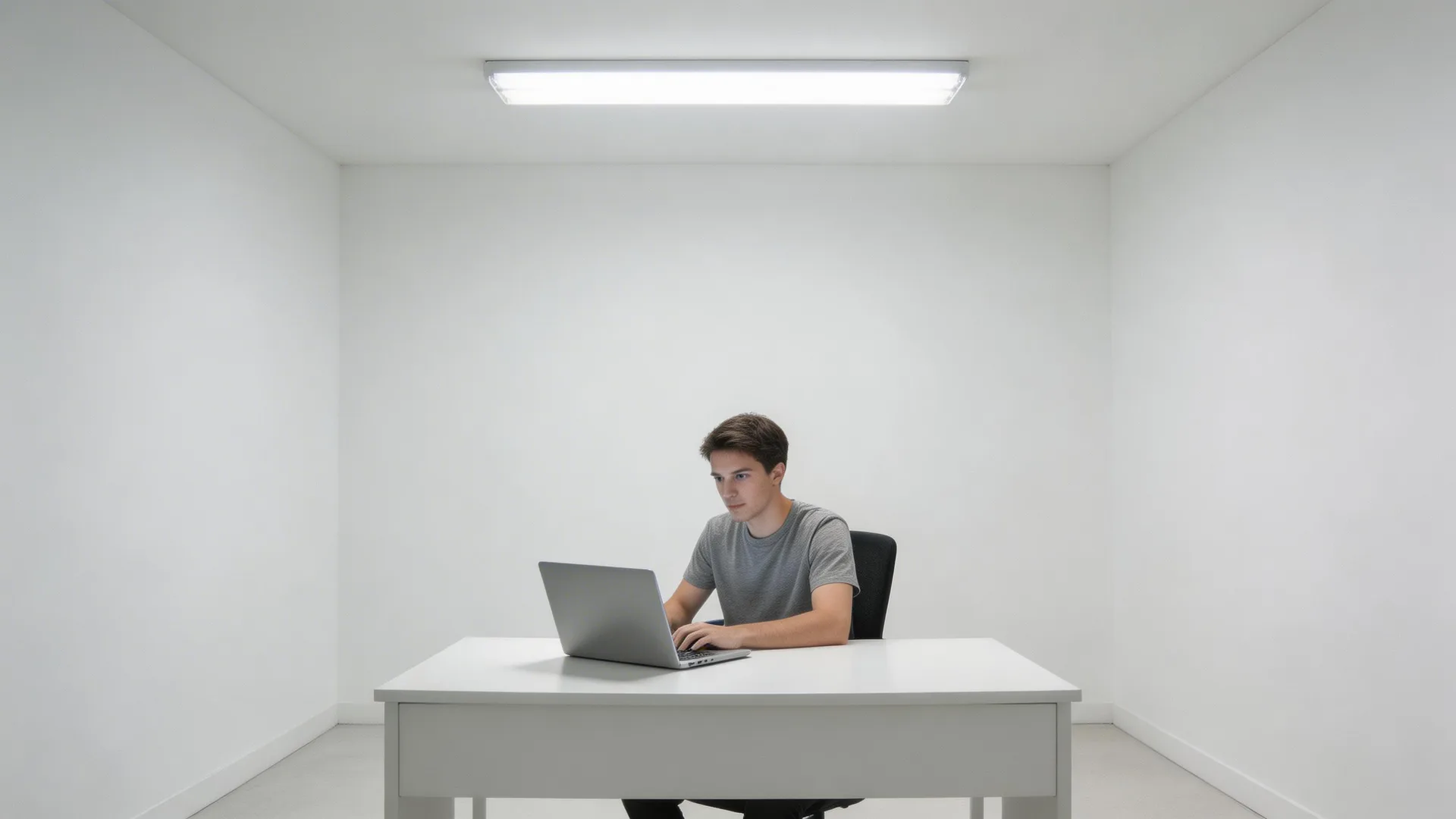
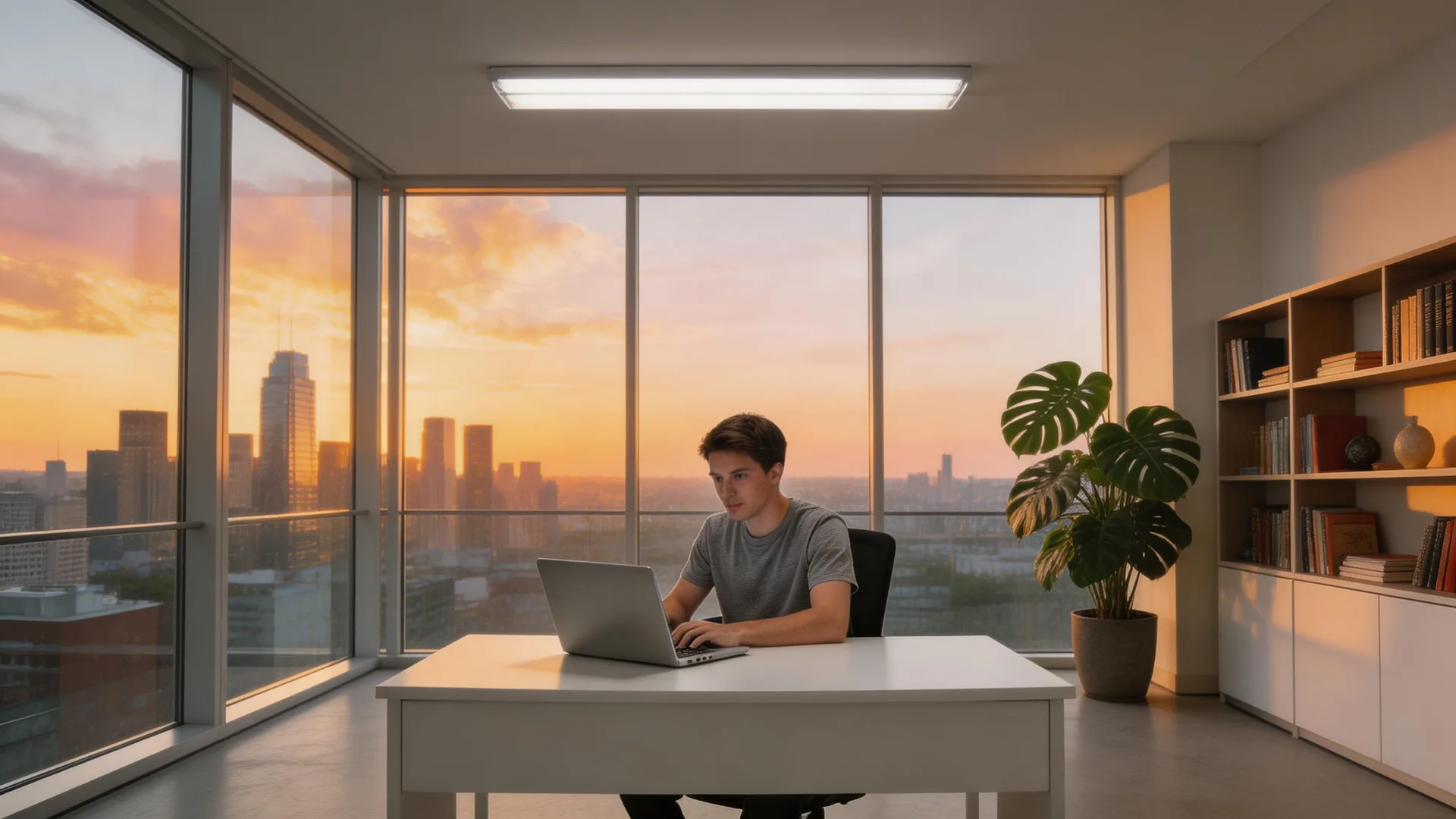
कॉन्टेक्स्ट ट्रांसफ़ॉर्मेशन एक सब्जेक्ट को लेकर पूरी तरह नए वातावरण में रख देता है। यह साधारण बैकग्राउंड रिप्लेसमेंट से परे है — Seedream 5 नए सीन से मैच करने के लिए लाइटिंग, शैडो और कलर टेम्परेचर को एडाप्ट करता है। किसी सादे कमरे में व्यक्ति की फोटो अपलोड करें और प्रॉम्प्ट करें: 'बैकग्राउंड को सनसेट पर शहर की स्काईलाइन दिखाती फ्लोर-टू-सीलिंग विंडो वाले मॉडर्न लॉफ्ट ऑफिस में बदलो, वॉर्म गोल्डन ऑवर लाइटिंग जोड़ो।' व्यक्ति उसी पोज़ में रहता है, लेकिन अब लाइट उनके चारों ओर ऐसे लपेटती है जैसे वे वास्तव में वहां हों। शैडो सही ढंग से गिरते हैं। कलर टेम्परेचर वॉर्म सनसेट से मैच करने के लिए शिफ्ट होता है। यही AI एडिटिंग को कट-एंड-पेस्ट से अलग करता है: स्पेशियल और लाइटिंग इंटेलिजेंस।
पहले
बाद में
मल्टी-राउंड एडिटिंग: इटरेटिव रिफाइनमेंट
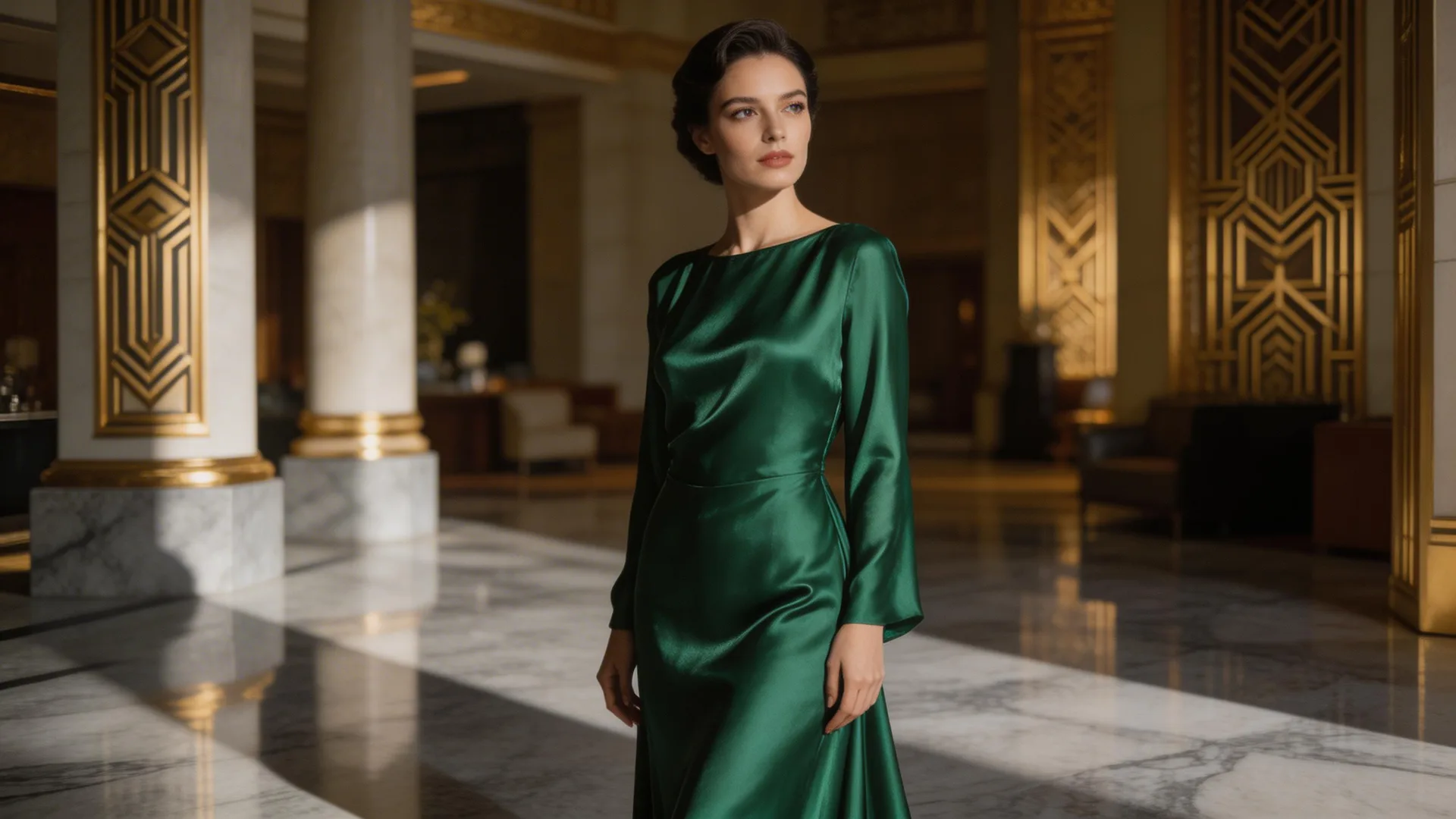
जटिल एडिट्स शायद ही कभी एक बार में परफेक्ट आते हैं — और उन्हें आने की ज़रूरत नहीं। Seedream 5 की मल्टी-राउंड एडिटिंग आपको इंक्रीमेंटल चेंज करने देती है, हर एक पिछले पर बिल्ड करते हुए। बेस इमेज से शुरू करें, फिर स्टेप बाय स्टेप रिफाइन करें: राउंड 1, 'सेटिंग को आर्ट डेको होटल लॉबी में बदलो।' राउंड 2, 'ड्रेस को एमराल्ड ग्रीन सिल्क बनाओ।' राउंड 3, 'स्ट्रॉन्ग डायरेक्शनल शैडो के साथ ड्रामैटिक फिल्म नोयर लाइटिंग जोड़ो।' राउंड 4, 'कलर ग्रेडिंग को वॉर्म विंटेज टोन में एडजस्ट करो।' हर राउंड पिछले आउटपुट को रेफरेंस के रूप में उपयोग करता है, इसलिए चेंज स्वाभाविक रूप से जमा होते हैं। यह इटरेटिव वर्कफ़्लो एक ही प्रॉम्प्ट में सब कुछ बताने से कहीं अधिक नियंत्रण देता है। इसे AI के साथ बातचीत की तरह सोचें।
प्रो टिप्स
- 1.सर्वोत्तम क्वालिटी रेफरेंस इमेज से शुरू करें। AI एडिटिंग जो पहले से है उसे प्रिज़र्व करती है — इनपुट में नॉइज़, कम्प्रेशन आर्टिफैक्ट्स और लो रेज़ोल्यूशन आउटपुट में भी आएगा।
- 2.क्या बदलना है और क्या रखना है, दोनों के बारे में विशिष्ट रहें। 'बैकग्राउंड को बीच में बदलो' अच्छा है। 'बैकग्राउंड को पाम ट्री वाले ट्रॉपिकल बीच सनसेट में बदलो, व्यक्ति और उनके कपड़े बिल्कुल वैसे ही रखो' बेहतर है।
- 3.मॉडिफिकेशन के लिए एडिट मोड, क्रिएशन के लिए टेक्स्ट-टू-इमेज। अगर आप 50% से कम बदलना चाहते हैं, तो एडिट मोड अधिक कुशल है। 50% से अधिक बदलना हो, तो विस्तृत प्रॉम्प्ट के साथ स्क्रैच से जनरेट करना बेहतर है।
खुद आज़माने के लिए तैयार हैं?
Seedream 5 के साथ बनाना शुरू करें। शुरू करने के लिए 75 मुफ्त क्रेडिट पाएं।
AI इमेज एडिटिंग आज़माएं